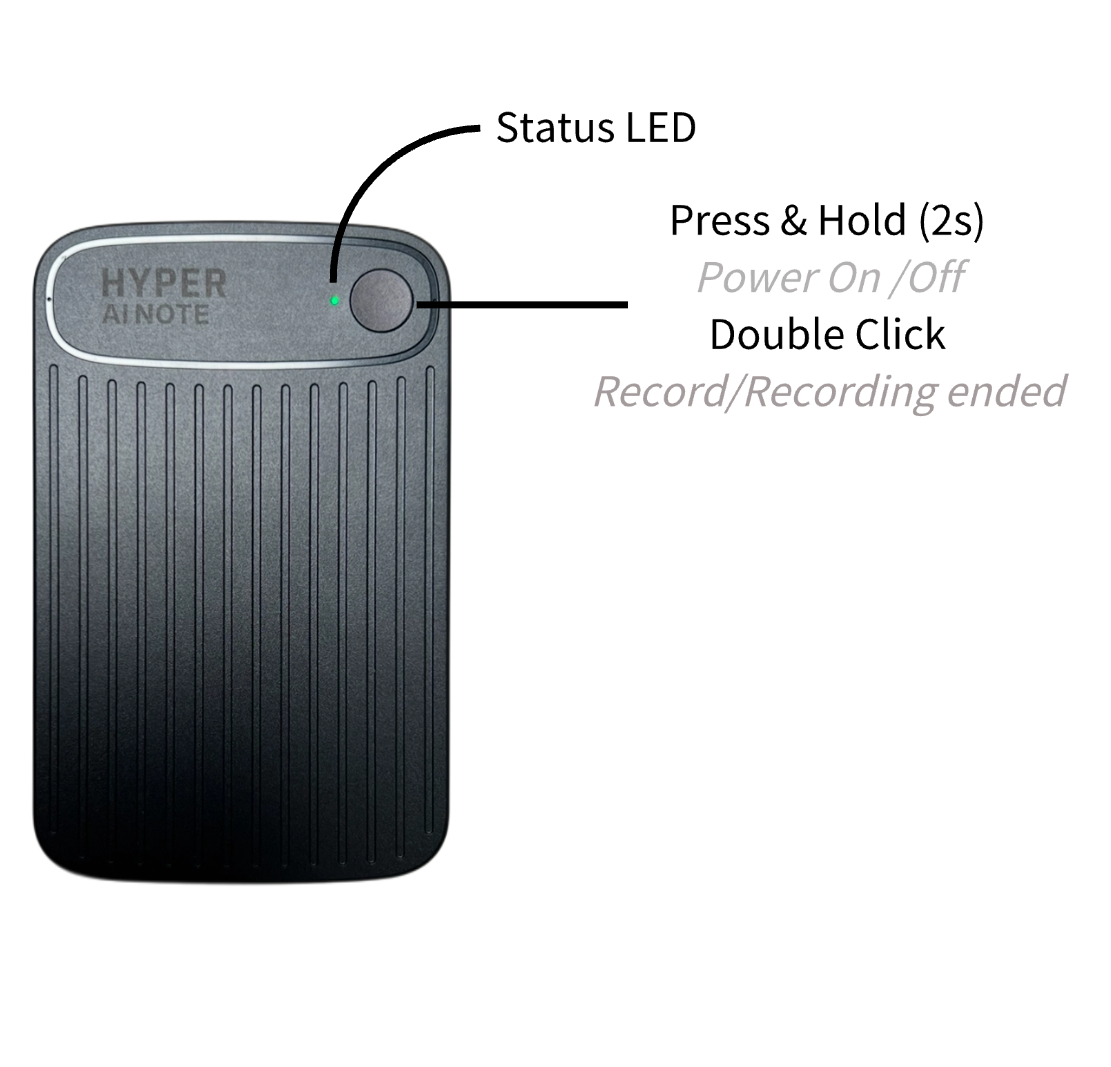
Button Control
Master the primary control button for power and recording.
Press & Hold (2s)
Power On / Off
Vibrates for 1s · Status LED flashes green
Double Click
Start / Stop Recording
Vibrates once (0.3s) to start · Vibrates twice (0.3s) to stop
Light & Vibration Prompts
A complete guide to LED and vibration feedback from your device.
| Scenario | Feedback |
|---|---|
| Charging | Status LED: Solid Red → Charging · Solid Green → Fully Charged |
| Power On (Standby) | Press & hold 2s · Vibrates for 1s · LED flashes green, then solid blue |
| Power Off | Press & hold 2s · Vibrates for 1s · LED flashes green, then turns off |
| Auto Power Off | Standby for 5+ minutes · Vibrates for 1s · LED flashes green, then turns off |
| Start Recording | Double-press in standby · Vibrates once (0.3s) · LED slow blue flash (0.5Hz) |
| Stop Recording | Double-press while recording · Vibrates twice (0.3s) · LED solid blue (standby) |
Device Connection
Pair your Hyper AI Note with the app in four simple steps.
Download and open the Hyper AI app on your phone.
Click 'Add a device' on the home page.
Select your model (e.g., 'AI Note') from the list.
Follow on-screen instructions to complete pairing.
Record Key Moments
Record key voice information and fully preserve audio discussions. Turn your recording card into a powerful information collection tool.
💡 Highly suitable for meetings, lectures, and interviews that require sound recording.
From Recording to Knowledge
Recording Moments
Double-click to start recording. Ensure you don't miss important moments.
Import Media
Open the App, click "Import" on the homepage, and transfer media from your Hyper AI Note via the dedicated high-speed Wi-Fi hotspot.
- 1. Initiate Connection
- 2. Activate Wi-Fi Transfer
- 3. Connect to Hyper AI Note Wi-Fi
- 4. Select and Import
AI Transcription
Click 'AI Record' and select an audio file. The system extracts audio and accurately transcribes it into text.
Smart Processing
Turn recordings into a knowledge base. Edit text, generate summaries, and create mind maps.
Hyper AI Assistant
A versatile language-enabled smart terminal AI assistant. Relying on OpenAI and Microsoft Azure cloud technology, it integrates core functions such as real-time voice translation, AI recording, and multilingual calls.
Core Features
AI Smart Notes
Automatically transcribe recordings into text, generating summaries and mind maps with professional templates.
AI Personal Assistant
Your 24/7 personal secretary, assisting you in recording any crucial information and simultaneously helping you compile and organize it.
Application Scenarios
Corporate Meetings
Real-time record + minutes generation
Education
Course transcription + summary + cross-language interaction
Business
Bilingual note templates
Travel
Voice translation + AI chat assistant + offline support
Supported Languages
Afrikaans, Albanian, Amharic, Arabic, Armenian, Assamese, Azerbaijani, Bengali, Bosnian, Bulgarian, Cantonese, Catalan, Chinese (Simplified/Traditional), Croatian, Czech, Danish, Dari, Dutch, English, Estonian, Fijian, Finnish, French (France/Canada), German, Greek, Gujarati, Haitian Creole, Hebrew, Hindi, Hungarian, Icelandic, Indonesian, Inuit, Irish, Italian, Japanese, Kannada, Kazakh, Khmer, Korean, Kurdish, Lao, Latvian, Lithuanian, Malay, Norwegian, Persian, Polish, Portuguese, Romanian, Russian, Serbian, Slovak, Slovenian, Spanish, Swahili, Swedish, Tamil, Thai, Turkish, Ukrainian, Urdu, Vietnamese, Welsh + More
Notes Template Types
General, Meetings, Speeches, Calls, Interviews, Medical, Sales, Consulting, Education, Architecture, IT, Legal, Real Estate, Finance